Caterpillar Electronic Technician (CAT ET) is professional diagnostic software designed to communicate with electronically controlled Caterpillar engines, generators, and heavy equipment. When connected to a compatible communication adapter, Cat ET helps technicians read fault codes, monitor live engine parameters, perform diagnostic tests, review ECM configurations, and complete supported service calibrations.
CAT ET 2026B, part of the 2026B software series, is an updated option for technicians who maintain Caterpillar equipment. It can be used with compatible communication hardware, including the Caterpillar Communication Adapter III (CAT ET3).
Whether you maintain Caterpillar excavators, wheel loaders, bulldozers, industrial engines, or on-highway engines, this guide explains what CAT ET 2026B can do, how to connect the diagnostic interface, what equipment it supports, and what to check before purchasing.
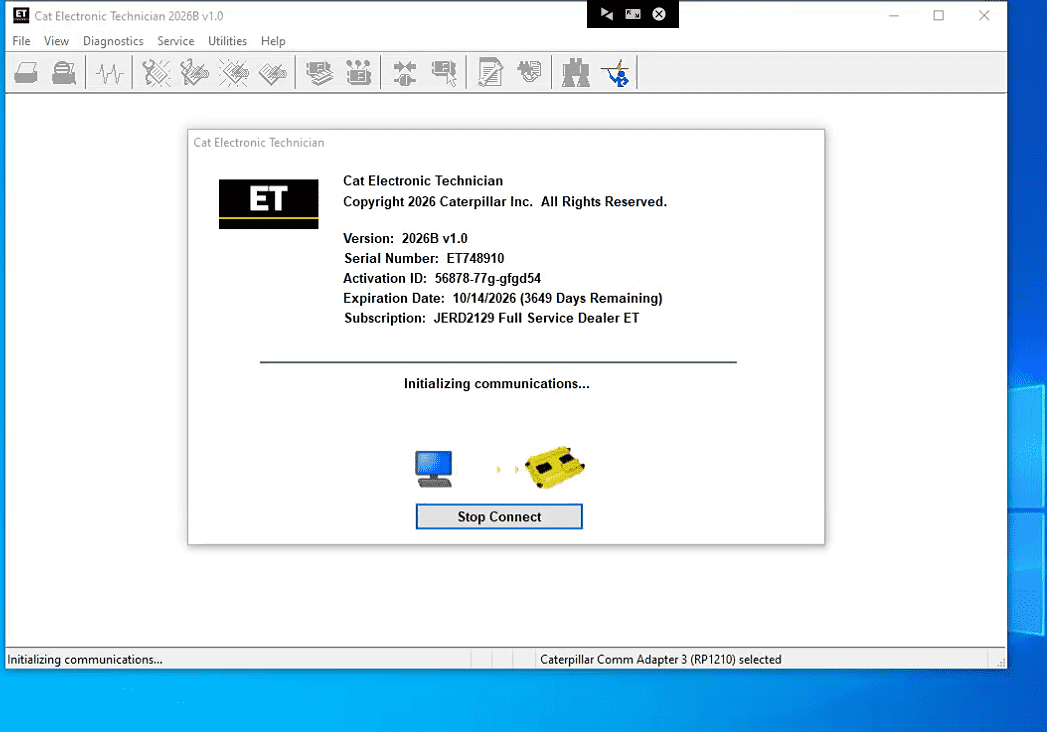
What Is Caterpillar Electronic Technician (CAT ET)?
Caterpillar Electronic Technician is a Windows-based service tool that communicates with electronic control modules (ECMs) through supported vehicle and equipment data links.
Modern Caterpillar engines and machines use electronic control systems to monitor performance, regulate engine operation, manage emissions-related components, and control various machine functions.
CAT ET gives technicians access to diagnostic information that may not be available through a machine’s instrument display.
The software can help with:
- Identifying active and previously logged diagnostic trouble codes
- Viewing real-time engine and machine operating conditions
- Comparing sensor measurements and operating parameters
- Recording diagnostic data for later analysis
- Reviewing ECM configuration information
- Performing supported diagnostic tests and calibrations
- Generating diagnostic reports
- Performing eligible ECM flash programming through WinFlash
Available functions depend on the machine model, ECM, software version, service permissions, and equipment configuration.
For workshops, CAT ET is particularly useful when diagnosing recurring engine faults, communication problems, sensor failures, and electronic system performance issues.
Common CAT ET 3 Connection Problems

The Software Cannot Detect the Adapter.
Check the adapter’s power status, USB cable, required driver, and selected communication interface.
If possible, follow the supplier’s troubleshooting procedure and test the setup with a known-compatible computer and cable.
The Adapter Connects but Cannot Identify the ECM
Confirm that the correct machine-side cable is installed and that the machine is in the required power state.
Check the diagnostic connector, communication network, and software compatibility. The computer recognizing the adapter does not prove that the machine-side connection is working.
The Wi-Fi Connection Is Unstable
Check the adapter’s network configuration, computer network settings, and wireless signal quality.
If the adapter and Software support a wired USB connection, use it during initial troubleshooting to help determine whether the problem is related to wireless communication.
For programming or other sensitive service operations, follow the applicable connection instructions and maintain stable power and communication.
A Diagnostic Function Is Unavailable
Not all functions are available on every machine or software configuration.
Confirm the connected ECM, software version, machine configuration, required permissions, and prerequisites for the intended operation. Some functions may require additional authorization or access through Caterpillar’s official service channels.
Leave a Reply